

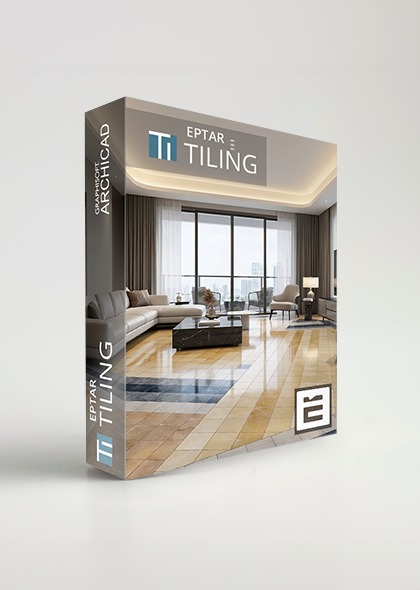
Tiling 3.9
English - German - Hungarian
Archicad 23-29
WIN - MAC
Perpetual
Total price: 228.6 €
180 € + VAT
Billing once
- ✓ Full version
- ✓ Priority Support
- ✓ 1 computer / license
Subscription - 1 year
Total price: 152.4 €
120 € + VAT / Year
Billing annually
- ✓ Updates for 1 Year
- ✓ Priority Support
- ✓ 1 computer / license
All prices are net prices and exclude VAT and local taxes
A: To install the product please run the installation wizard and follow the instructions. If the installer cannot find your Archicad version, click the browse option and select the appropriate Archicad version manually.
The solution is compatible with Archicad 25 and 26. During installation you must select the preferred language (Hungarian, English or German).
After starting Archicad, the ÉPTÁR Solutions menu appears in the program's menu bar, where you can access the Tiling solution.
The solution is compatible with Archicad 25 and 26. During installation you must select the preferred language (Hungarian, English or German).
After starting Archicad, the ÉPTÁR Solutions menu appears in the program's menu bar, where you can access the Tiling solution.
A: Without registration the solution runs in DEMO mode with limited functionality. To register, you first need to purchase the application in the éptár webshop (LINK).
Use the credentials (Username / Password) you received with your purchase. Make sure your computer is connected to the internet, then start Archicad.
After launching Archicad, go to ÉPTÁR Solutions / Tiling / Registration to activate the license by entering your username and password. After successful activation, the solution can be used with full functionality.
Use the credentials (Username / Password) you received with your purchase. Make sure your computer is connected to the internet, then start Archicad.
After launching Archicad, go to ÉPTÁR Solutions / Tiling / Registration to activate the license by entering your username and password. After successful activation, the solution can be used with full functionality.
A: Yes, the online key can be borrowed for offline use, however this is a separately purchasable option that must be acquired individually for each license.
How it works: after successful registration, click on ÉPTÁR Solutions / Tiling / Registration again, then click "Next". When the "Congratulations!" message appears, the key is switched to offline mode for 7 days – during this period you can use the program without an active internet connection. After 7 days the key automatically reverts to online mode.
To purchase this option, please contact ÉPTÁR support at info@eptar.hu.
How it works: after successful registration, click on ÉPTÁR Solutions / Tiling / Registration again, then click "Next". When the "Congratulations!" message appears, the key is switched to offline mode for 7 days – during this period you can use the program without an active internet connection. After 7 days the key automatically reverts to online mode.
To purchase this option, please contact ÉPTÁR support at info@eptar.hu.
A: To load the library, click on ÉPTÁR Solutions / Tiling / Load library / Launch toolbar. The add-on will automatically load the eptar_Tiling_Library into the active libraries.
After loading, the library elements can be found under the Object tool. Use the Object tool to place custom shapes, and use the Tiling toolbar palette to tile walls and floors.
After loading, the library elements can be found under the Object tool. Use the Object tool to place custom shapes, and use the Tiling toolbar palette to tile walls and floors.
A: For tiling, use the newly developed Tiling toolbar palette. This palette contains the Wall and Slab tools, as well as the Library loader as the last icon.
Usage:
1. Select the wall or slab.
2. Click the corresponding tool icon in the Tiling palette.
3. In the Settings window that opens, set the parameters, then click OK.
Starting from version 3.7, tiles can also be placed in 3D view – select the wall or slab in 3D and click the tiling icon that appears. The "eye" cursor and dashed line help you determine which side the tiling will be applied to.
Note: the roof tool is currently under development.
Usage:
1. Select the wall or slab.
2. Click the corresponding tool icon in the Tiling palette.
3. In the Settings window that opens, set the parameters, then click OK.
Starting from version 3.7, tiles can also be placed in 3D view – select the wall or slab in 3D and click the tiling icon that appears. The "eye" cursor and dashed line help you determine which side the tiling will be applied to.
Note: the roof tool is currently under development.
A: Three different View modes are available for modifying the tile layout, which you can switch between on the General settings page:
Geometry mode: moving and rotating the tile surface view, adjusting corner points of extra holes. In this mode you cannot change tile colors.
Tiling mode: changing tile colors and types, shifting tile rows, replacing individual tiles. Modifications are made using the purple draggable hotspots.
View mode: shows the print preview of the surface with textures. In this mode the layout cannot be edited.
For all editing operations, make sure the Move Node function is enabled on the floating palette.
Geometry mode: moving and rotating the tile surface view, adjusting corner points of extra holes. In this mode you cannot change tile colors.
Tiling mode: changing tile colors and types, shifting tile rows, replacing individual tiles. Modifications are made using the purple draggable hotspots.
View mode: shows the print preview of the surface with textures. In this mode the layout cannot be edited.
For all editing operations, make sure the Move Node function is enabled on the floating palette.
A: In previous versions, custom textures could be loaded with the "Load picture" button – this button has been removed because texture handling has changed.
The solution can now only use textures loaded into the active libraries. To use your own textures, simply load the folder containing the custom textures using the Archicad Library Manager. All loaded custom textures will automatically appear in the texture list of the tile element settings window.
The solution can now only use textures loaded into the active libraries. To use your own textures, simply load the folder containing the custom textures using the Archicad Library Manager. All loaded custom textures will automatically appear in the texture list of the tile element settings window.
A: You can create a report of the tiled surfaces using Archicad's built-in listing function. Go to Document / Schedules and Lists / Component Lists / Standard. You can list all surfaces or only the selected surfaces.
The tile quantity is displayed according to the value set in the Global settings (gross area, net area or piece count). However, if you have set a different measurement unit for a specific tile type in the Object settings, the list will follow that individual setting.
This way you can create a list where the main tiles are summed by gross area while decorative strips are counted by piece.
The tile quantity is displayed according to the value set in the Global settings (gross area, net area or piece count). However, if you have set a different measurement unit for a specific tile type in the Object settings, the list will follow that individual setting.
This way you can create a list where the main tiles are summed by gross area while decorative strips are counted by piece.
A: The Wall tool in the Tiling palette only works with straight walls. For curved walls, sloped walls, or other special surfaces, use the Custom shapes function.
To place a custom shape, use the Archicad Object tool, then in the Object settings window select whether you want to place wall tiles or floor tiles. On the Geometry tab you can choose between Straight or Curved geometry, set the tilt angle, arc radius and arc angle, and create either Rectangle or Polygon shapes.
Important: custom elements become standalone Objects – subsequent modifications to the wall will not automatically affect the shape.
To place a custom shape, use the Archicad Object tool, then in the Object settings window select whether you want to place wall tiles or floor tiles. On the Geometry tab you can choose between Straight or Curved geometry, set the tilt angle, arc radius and arc angle, and create either Rectangle or Polygon shapes.
Important: custom elements become standalone Objects – subsequent modifications to the wall will not automatically affect the shape.
Didn't find an answer for your question? Please contact us on this address:
E-mail: info@eptar.hu